
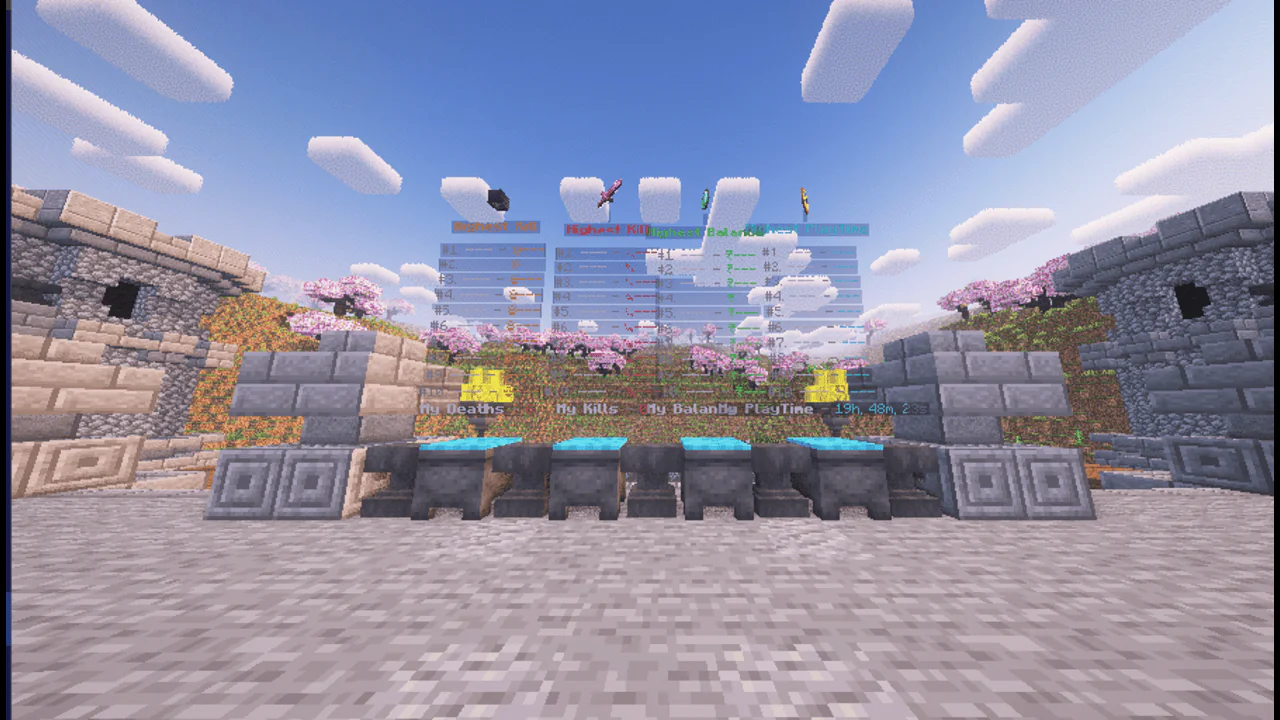
Leaderboard Configurations for Decent Holograms
Created by Notdev Studios
These leaderboard configurations are designed for the Decent Holograms plugin and use AJLeaderboards to display player statistics in holograms.
Included Leaderboards
The package includes the following leaderboard categories, each available in All-Time, Monthly, and Weekly formats:
Requirements
Install the following before using these configurations:
Package ContentsDecent_Leaderboards.zipFileDescriptionptlbWeekly Playtime Leaderboardptlb_2Monthly Playtime Leaderboardptlb_3All-Time Playtime LeaderboardmlbMonthly Money Leaderboardmlb_2Weekly Money Leaderboardmlb_3All-Time Money LeaderboardklbMonthly Kills Leaderboardklb_2All-Time Kills Leaderboardklb_3Weekly Kills LeaderboarddlbMonthly Deaths Leaderboarddlb_2Weekly Deaths Leaderboarddlb_3All-Time Deaths LeaderboardInstallationStep 1 — Install Required Plugins
Install all plugins listed in the Requirements section.
Step 2 — Restart the Server
Restart your server to ensure all plugins load correctly.
Step 3 — Install PlaceholderAPI Expansions
Run the following commands in the server console or as an operator:
/papi ecloud download statistics
/papi ecloud download vault
/papi reload
/ajlb add statistics_player_kills
/ajlb add statistics_deaths
/ajlb add vault_eco_balance
Step 4 — Import the Holograms
Copy Decent_Leaderboards.zip into:
/plugins/DecentHolograms/holograms/
Step 5 — Extract the Archive
Extract all files inside the holograms folder.
Step 6 — Complete the Required Configuration
Follow the instructions in the Important Configuration section below before placing the holograms.
Step 7 — Position the Holograms
Use the following command to move each hologram to its desired location:
/dh mvhr <Hologram_ID>
Replace <Hologram_ID> with the hologram's filename (for example, mlb, klb_3, or ptlb).
Important Configuration
Before using the holograms, you must update the world name.
Open every hologram file and change:
location: astrasmp
to
location: world
Replace world with the name of the world where you want the holograms to appear.
Note: The provided files use astrasmp because they were created for the Notdev Studios development server.
Using Vanilla Playtime Instead of PlayTimeManager
If you do not use PlayTimeManager, edit the following files:
Replace:
PTM_playtime
with
statistic_hours_played
Also replace the bottom placeholder:
%PTM_Playtime%
with
%statistic_hours_played%
Support
If you encounter any installation or configuration issues, please contact:
Email: notdevabhinav@gmail.com
The author notdevmayon has offered the item for free, you can now download it.
Published:
Jun 26, 2026 11:42 AM
Category:





![[NotDev] Modern Server Rules GUI | DeluxeMenus Configuration](https://craftog.com/files/items/wmvbmwz3eyal/epNCAk7oBh067bt_1782458704.webp)